Start with MySpeak
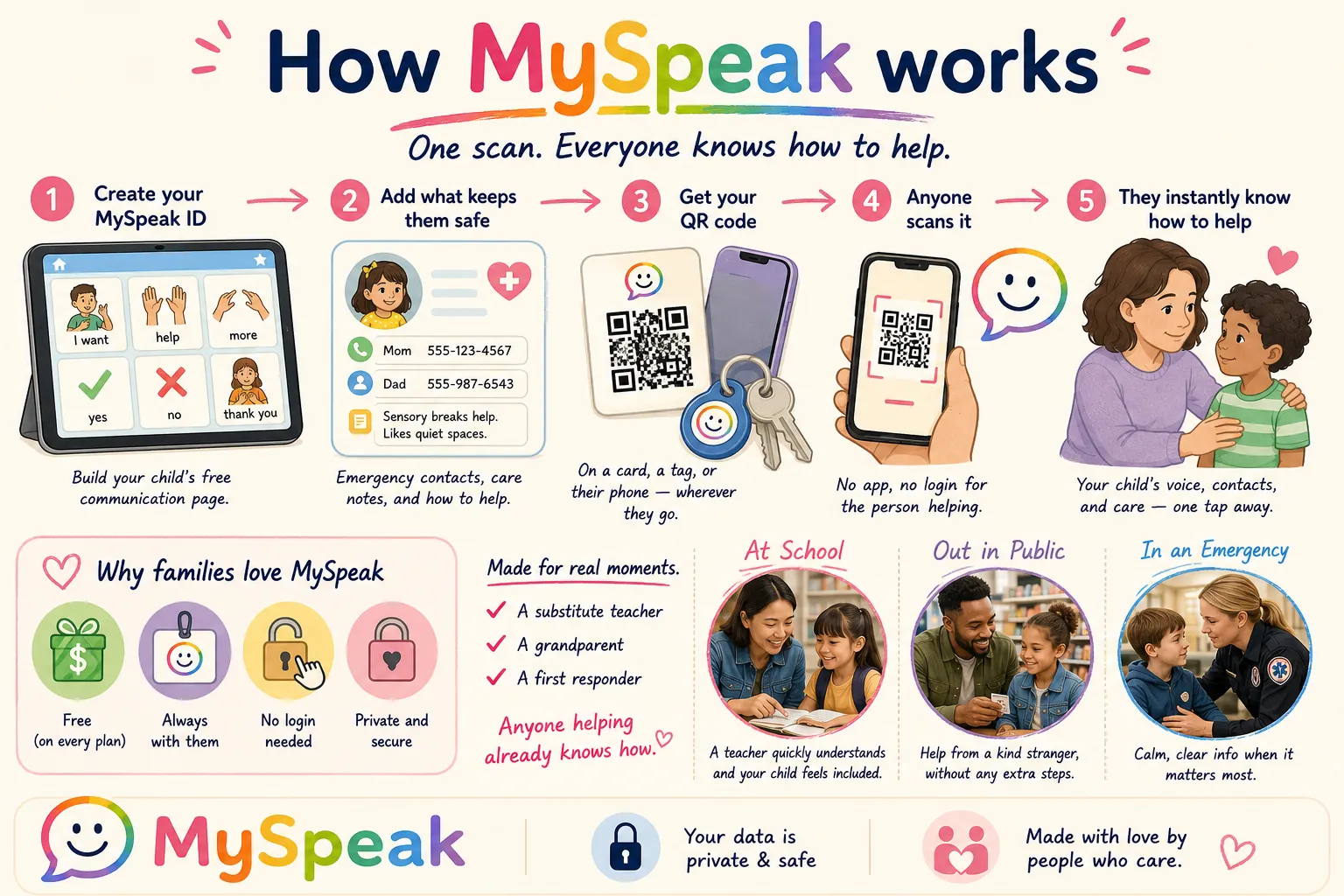
MySpeak is the fastest way to give a communicator a shareable, working AAC page — plus a QR code you can print. A short guided wizard walks you through it, no board-building required.
If you're brand new and just want something you can hand to grandparents or send to school today, this is the path.
What you'll need
- A SpeakAnyWay account (free works)
- A name for the communicator
- At least one emergency contact (name and phone)
Steps
- Sign in at app.speakanyway.com.
- From the side nav, click Add Communicator (or Communicators → New communicator).
- On the setup page, click the Start with MySpeak → button under Start with a MySpeak page.
- Welcome — click Let's start. The wizard then walks you through a few quick screens:
- About — type the communicator's name (required), and optionally add a photo and pronouns.
- Board — pick a starter board from the suggestions, build a custom one, or skip and add one later.
- Notes — optional care notes for anyone using the page.
- Contacts — add at least one emergency contact (you can add up to three).
- On the Preview screen, check how the page looks, then click Looks good — get my QR.
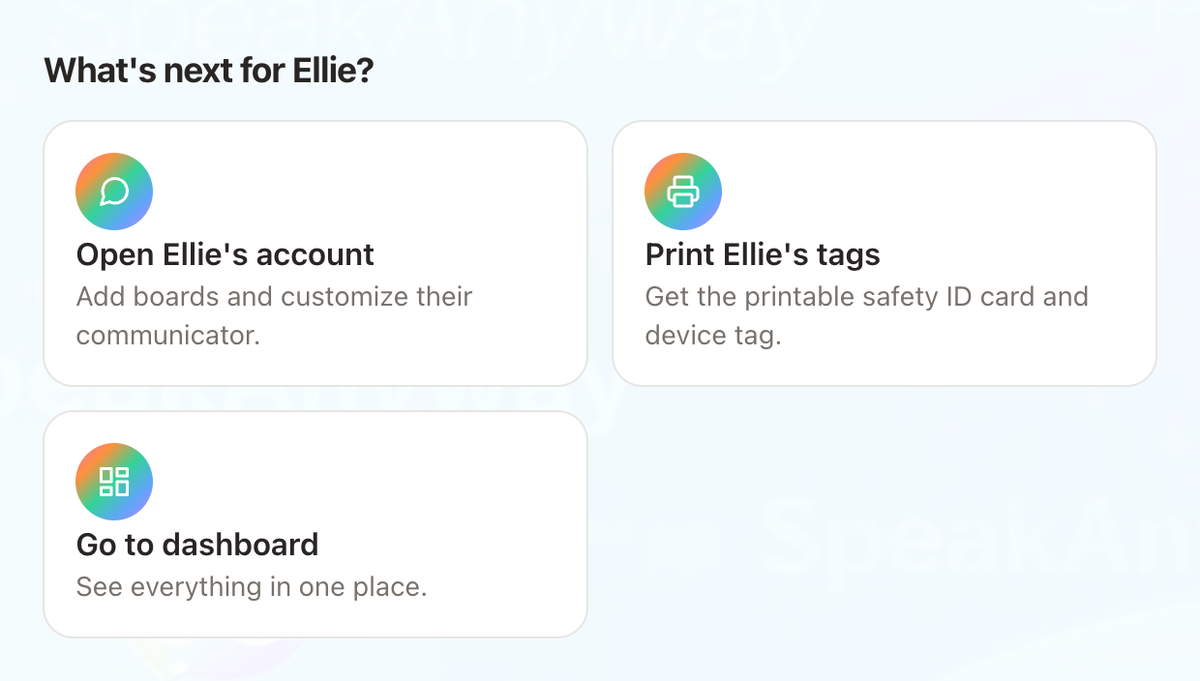
- Done. You'll land on a Saved screen with the communicator's QR code and public link. From there you can View public page, Copy link, and pick a next step — Open their account (add boards and customize), Print their tags (a printable safety ID card and device tag), or Go to dashboard.
What to expect
- The first board is a starting point, not a finished thing. You can use it as-is, edit it, or add more boards later.
- The communicator is created in the background. You don't have to fill out a separate form — the wizard sets everything up for you.
- The MySpeak page is public to anyone with the link, but the link itself is a random, unguessable code (see below) — it's not listed or searchable.
- The default voice is Kevin (US English). You can change it later from the communicator's edit page.
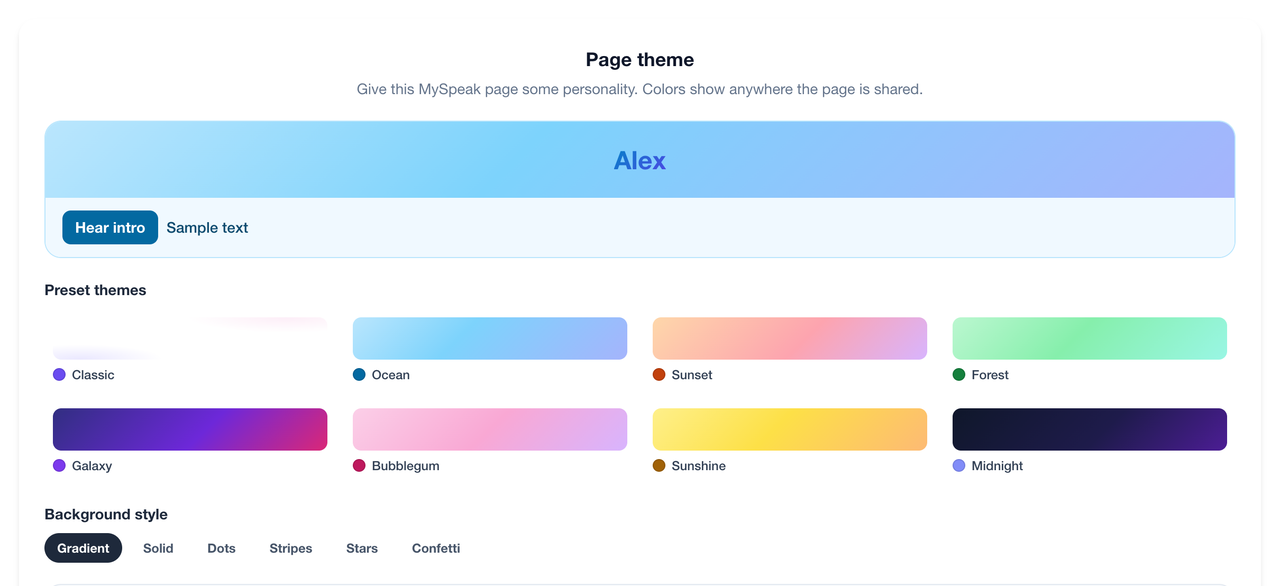
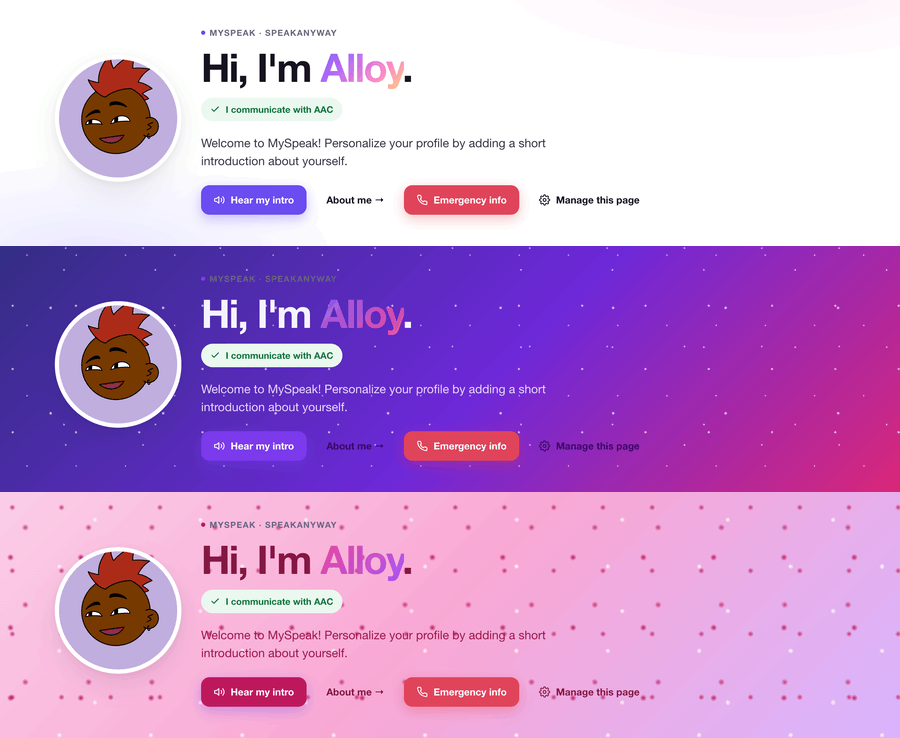
- You can give the page some personality. On the communicator's page you'll find a MySpeak page theme section — pick a preset theme (Ocean, Sunset, Galaxy, and more) and a background style. It's free on every plan, and the colors show anywhere the page is shared.
Sharing the page
SpeakAnyWay assigns each page a secure, random link. You don't pick it (so no one can guess it), and it never includes the child's name. From the Saved screen you can:
- Copy link — paste it in a text, email, school portal, or family group chat.
- View public page — open the live page to check it. When you open it while signed in as the owner, a Manage this page button appears so you can jump straight back to edit boards, notes, contacts, or the page theme.
- Share the QR code — print it for an iPad case, a backpack, or a fridge magnet. Anyone who scans it lands on the page instantly, no login needed.
There's also a short lookup code (shown like J5N-Z86) for finding the page by hand if scanning isn't an option.
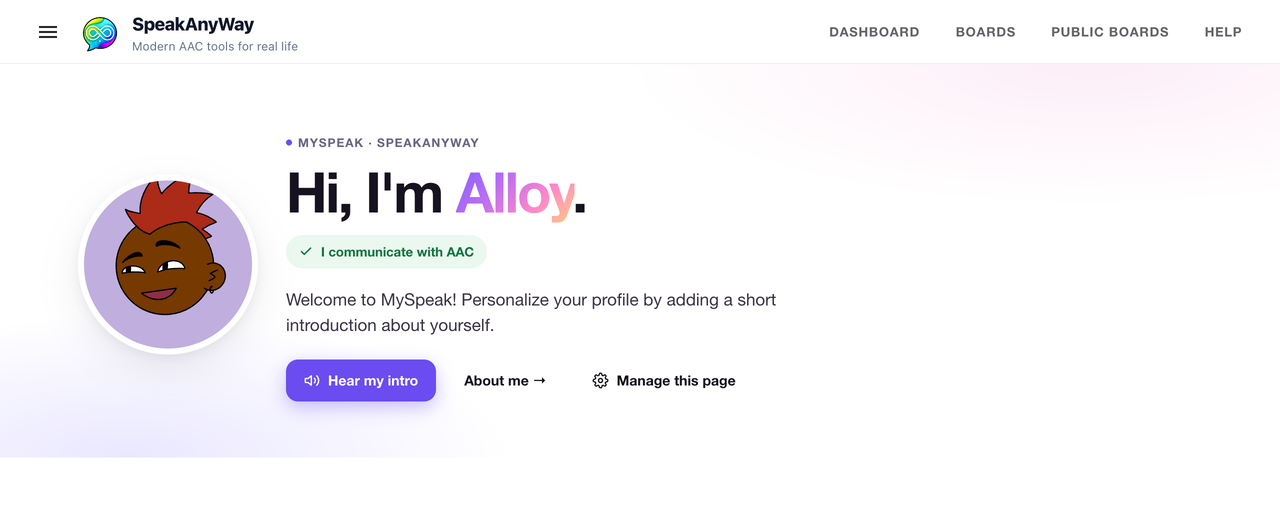
See Share a board or page for screenshots and tips.
Emergency info and care notes
Nothing sensitive shows when the page loads. If you added contacts, medical details, or care notes, they sit behind two separate cards under Helping [name] today? Start here. — someone has to tap one open:
- Emergency info — allergies, medical needs, and who to call.
- Care & routines — how they communicate, eat, and get around.
That way the page is safe to share widely, but the people who need the details can still get to them in a pinch — no login, no code.
Only Emergency info notifies you. When someone opens that card, you get an email letting you know the emergency details were opened, and when. Opening Care & routines does not email you — that split is on purpose: if you got an alert every time a bus driver checked a snack rule, you'd stop reading the one that matters. Both taps are logged either way.
A few details worth knowing:
- If the emergency card is opened several times in a row, you get one email per hour, not one per tap. Opens inside that hour are still logged, just quietly.
- The alert goes to the communicator's owner. A user-level Public page — one that isn't tied to a communicator — has no one to alert, so it doesn't send anything.
- Just loading the page never opens either card and never sends a notification.
Common questions
- Do I have to use MySpeak? No. If you'd rather set up a communicator with a custom voice and your own boards, use the custom communicator setup on the same page. See Set up your first communicator.
- Can I choose my own link or username? No — and that's on purpose. SpeakAnyWay picks a random, unguessable link so the page can be shared without showing the child's name. If a link has gone further than you'd like, use Get a new link on the MySpeak tab — the old link stops working, and QR codes you've already printed keep working.
- Can I make the MySpeak page private later? There's no sign-in on a MySpeak page — anyone with the link can open it, including the emergency info behind its button. Share it only with people you trust. If it's gone further than you want, tap Get a new link: the old link stops working, and your printed QR tags keep working.
- Can I have more than one MySpeak page? Each communicator gets one MySpeak page. If you want a different shareable page for a different child, create another communicator.
- What if I already have a communicator and want a MySpeak page for them? From your dashboard, look for the Set up MySpeak card ("Set up your free MySpeak page now") — it runs this same wizard for a communicator that doesn't have a page yet. You don't need to start over.
- Can I change how the MySpeak page looks? Yes. Open the communicator's page and use the Page theme section to pick a preset theme, background style, and accent color. It's free on every plan, and the look shows anywhere the page is shared.